

Dark web Magic!
- Rahul Kumar

- Jul 15, 2021
- 3 min read
In this blog, I am going to show you how to securely access the dark web.
for that, you need to download an OS that is Specially made of this type of stuff
"Tails"

REQUIREMENTS
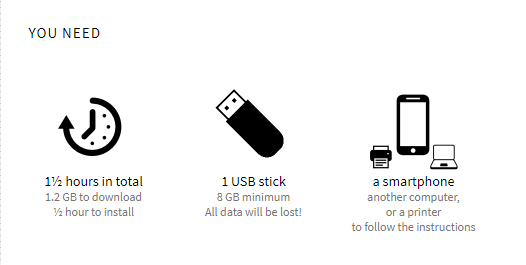
How to download in install Tails?
And select an os. I am doing this on windows.
Click on "INSTALL FROM WINDOWS"

Then click on "let's go"

After that "download tails USB image"
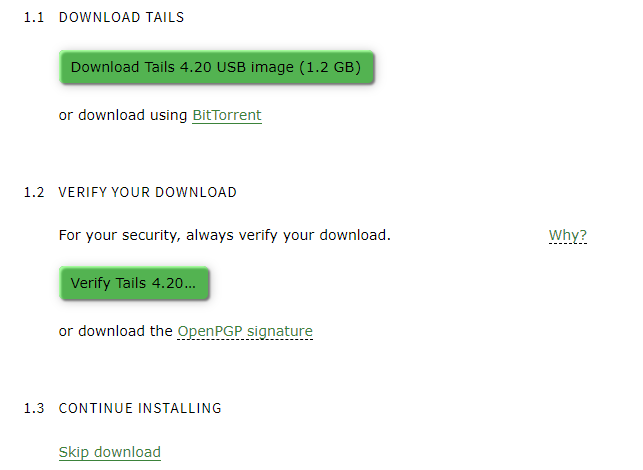
You can also verify the image INTEGRITY by Clicking VERIFY TAILS and select the image(optional)
After that, you need to download ETCHER
after downloading OS images and Etcher Put them on Desktop(FOR SIMPLICITY)
Now connect your Pendrive to your system and open Ether

Click on Select image and Select Tails OS image
IT should look like this

then, Click on flash
wait until it flashes the image to Pendrive(depend upon your System)
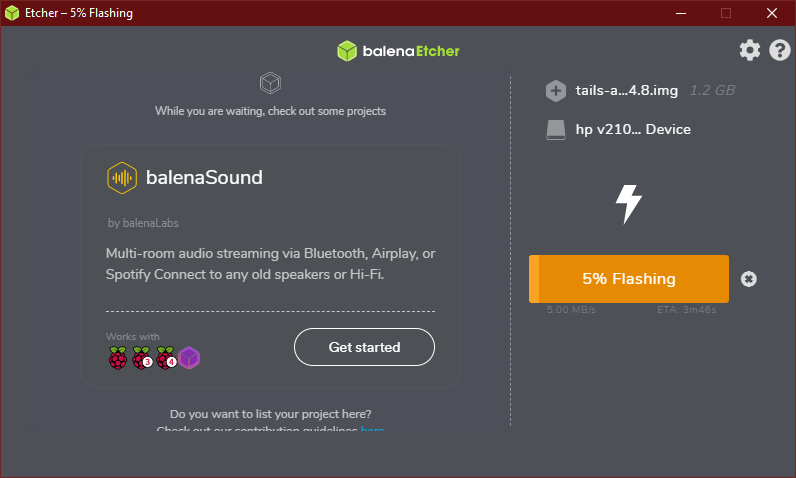
After validating

Close the Ether and Boot From the Pendrive. (Restart and enter the boot menu by pressing F12 or F10 Depends on your System )

In the Boot Menu, select your USB stick and press Enter.
If the computer starts on Tails, the Boot Loader appears and Tails starts automatically after 4 seconds.

Welcome Screen
The Welcome Screen appears after the Boot Loader, but before the GNOME Desktop.
You can use the Welcome Screen to specify startup options that alter some of the basic functioning of Tails.

In this windows click on formats and set the date and time correctly otherwise you'll not able to access the tor service
and then click on start tails
Additional settings
Tails is configured with care to be as safe as possible by default. But, depending on your situation, you can change one of the following settings from the Welcome Screen.
Connecting to Tor

connect your system to the internet by wifi or Lan
I am using my LAN Network
System menu

In the top-right corner of the top navigation bar, the system menu allows you to manage your settings, connect to a Wi-Fi network, and restart your computer.
when you connect your system to the internet tor service will start automatically
you can check your tor connection on https://check.torproject.org/

Note- This OS by default is not persistent. which means that when the computer is restarted all the things and data you have downloaded got erased and after the restart, fresh tails is booted.
To make this persistent here is the documentation - https://tails.boum.org/doc/first_steps/persistence/configure/index.en.html
If tor is censored in your county use bridges
https://bridges.torproject.org/bridges (Free Bridges)
How to Configure Bridges - https://tb-manual.torproject.org/bridges/
LASTLY
well, tails is safe to some extent but it's not a magic OS.
take your precautions
don't use admin password when not needed in tails
scan files that you have downloaded on any online antivirus service(virus total)
use a VPN service
Don't trust anyone or anything
OR BE LIKE LOKI
Some DARK WEB links
not Evil
nor Evil is a search engine on the dark web with more than 32 million indexes. It has got more functionality and quality than the other search engines. Previously known as TorSearch, it is famous for its continued updates.
Onion Link: hss3uro2hsxfogf.onion
Hansa market
Hansa Market was the famous darknet market after AlphaBay’s shutdown. But Hansa has been compromised in the year 2017 just one month after AphaBay by German and Dutch police. They even had an affiliate program for newcomers. Now you can only see the seizure notice.
Onion Link: hansamkt2rr6nfg3.onion
Hansa market
Hansa Market was the famous darknet market after AlphaBay’s shutdown. But Hansa has been compromised in the year 2017 just one month after AphaBay by German and Dutch police. They even had an affiliate program for newcomers. Now you can only see the seizure notice.
Onion Link: hansamkt2rr6nfg3.onion
Hidden Answers
Darkweb Blog
The Hidden Wiki
http://zqktlwiuavvvqqt4ybvgvi7tyo4hjl5xgfuvpdf6otjiycgwqbym2qad.onion/wiki/index.php/Main_Page


Comments